For my latest post, I’m going to talk a little bit about, well, this blog! Specifically, I’d like to share my recent project to convert it from a dynamic, WordPress-based application hosted on a traditional web server to a collection of (mostly) static pages living in…[insert magical hand wave here]…The Cloud.
When I first launched “teachernerd.com” in the summer of 2019, I did what I was used to and turned to a managed hosting provider. The thing about managed hosting, however, is that “managed” is just another way of saying “locked down,” which is not the funnest setup for tinkerers like me. (Yes, I said “funnest.”) Also, all that “management” you’re supposedly paying for comes at a cost—a cost that (surprise!) tends to increase over time. At some point I got to thinking, “Why not just do this myself?” So I used a much cheaper service from that same provider to spin up a virtual machine and then proceeded to set up a classic LAMP stack.

Of course, given that I am not a cybersecurity expert, I eventually started to worry about keeping this self-managed system safe. So…I configured my virtual machine’s network gateway to close off all inbound access from the public internet.
Blocking all ingress to your server like this is kind of a problem, though, if you’re trying to host a public website. Enter Cloudflare Zero Trust, an enterprise-oriented offering that also includes a very generous free tier. By setting up a secure tunnel, I was able to use Cloudflare’s global network of data centers as my front door (rather than a public IP address), which meant I could rely on their expertise and infrastructure to wall off all the private parts of my system.
This all kind of worked for a while, except that it also made it much more complicated for me to access everything!
I finally decided it was time to get out of the server self-management business.
The Problem
What makes WordPress (and content management systems like it) so special is that it generates pages on demand. For the most part, all of your text is stored in a database while your media lives in an uploads directory on the server. To display a particular page, the server executes a script that makes a bunch of calculations in order to insert the correct content into the correct locations within a series of templates. The actual pages seen in the browser don’t technically exist until they are requested. Thus, the content is considered dynamic.
This is a far cry from the World Wide Web of the early 90s, when what you saw in your browser was largely static. Although server-side scripting was still a thing even back then, in general, content was stored in its “final” form on the server and simply fed over the internet (that mythical series of tubes) to the end user.

We’ve come a long way since then in terms of interactivity (JavaScript!), security (encryption!) and so forth, but one of the biggest liabilities remains all the moving parts that go into serving up dynamic content. Whether powered by PHP, Node.js, or some other language/platform, websites are now essentially software, which of course leaves plenty of room for bugs—to say nothing of all the software running behind the scenes on each individual server.
In many ways, this is just progress: sophistication breeds complication. Still, wouldn’t it be nice if there were a way to get the best of both worlds? What if you could use a fancy system like WordPress to simplify content creation (rather than having to painstakingly craft every single page by hand) but still somehow serve it all from static, inherently more mundane files? Heck, what if you could eliminate all the overhead of running a web server altogether?
All of these things, it turns out, are possible thanks to the oxymoronically named concept of static site generation.
A static site generator is basically a tool that does all the stuff a CMS does (i.e. combine content, templates, and logic) but instead of delivering the results to a browser on demand, it saves every possible page in advance as static HTML files, which you can then upload to a traditional web server or, even better, one of numerous “serverless” providers that now make it possible to “abstract away” the entire web hosting concept.

There’s a catch, however. (There’s always a catch!) Some website components simply cannot be done statically, the most obvious examples being forms. With forms, you have to be able to collect the information and then do something with it—the exact opposite of remaining static!
I knew the solution to my website maintenance challenge was to migrate to a static blog, but to do so without any loss in functionality, I would eventually have to find a way to deal with not one but two contact forms as well as numerous places where a search form appears.
The Objective
For me to feel satisfied, a statically generated blog would have to meet the following criteria:
- Be able to replicate the exact look and feel of my original WordPress blog.
- Be able to do this repeatedly (i.e. any time I might choose to update the site).
- Not require me to learn a new platform (at least not right now).
- Have somewhere to live on the public internet.
- Have some way of handling contact forms.
- Continue to offer a search engine.
- Be as inexpensive as possible. (Bonus points, as always, if it could be done for free!)
The Solution
Gimme, Gimme Some HTML
Let’s start with those first three goals: easy, repeatable replication without using a new platform. For this, I turned to a WordPress plugin called Simply Static. With just a modicum of configuration required, this plugin was able to save a perfect copy of the output for nearly every single page of my site to a specified directory on my web server.
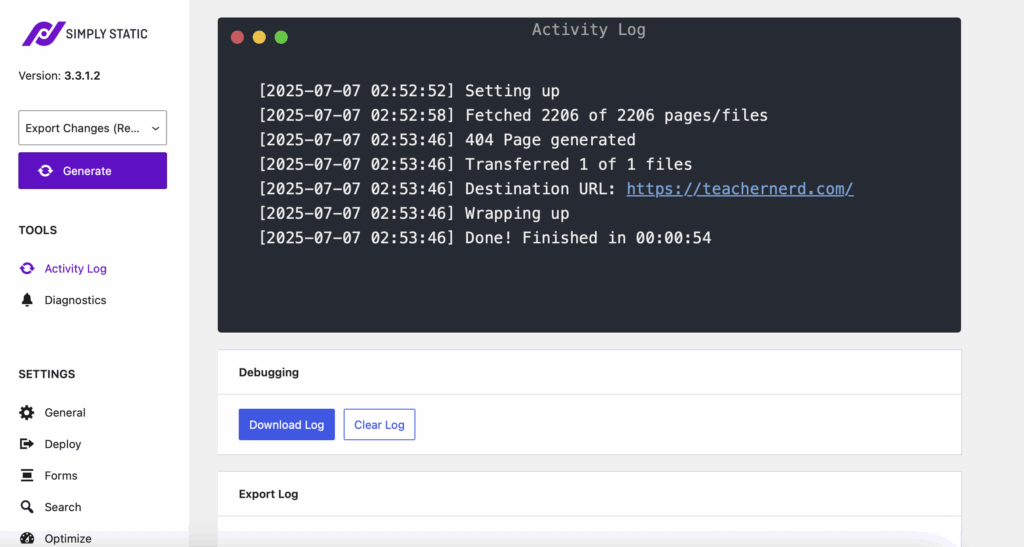
Now, hold up a minute! Isn’t the goal here to avoid running a server? Well, yes, but I still want to use WordPress to generate my site. And that means I still need a server somewhere. My goal was to ditch my public web server; I don’t mind a private server on my own local machine.
A Trip to the Docks
Look, despite all my complaining, web servers are not rocket science, but they can be annoying to set up. Actually, there are lots of systems you might want to put on a computer that can get tricky real fast, especially if you want them all to play nice together. This is precisely why containerization was invented!
It’s way beyond the scope of this post to truly explain containerization, and I don’t think I’d do a very good job of it anyway. But put very simply, containers work a little bit like virtual machines in that they bundle together all of the software and configurations you need to run a particular thing (a web server, a database server, a home automation system…) while relying on resources provided by the containerization platform and host machine to actually execute it.
One of the biggest names in containerization is Docker, and one of the things that Docker is very good at is composition—that is to say, allowing you to build an entire system out of multiple pre-compiled components.
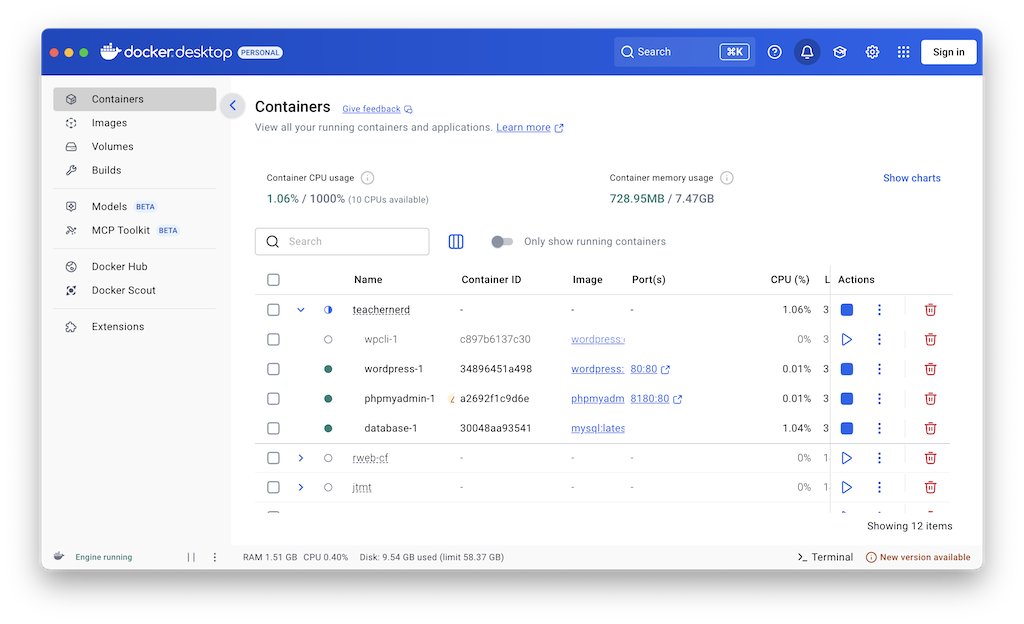
This is starting to veer into the territory of something known as infrastructure as code, but you can basically create a file that describes each of the pieces you need and how they should work together. Then, with a single terminal command, you can tell Docker to download/assemble all those bits and launch the system.
You can see my own Docker composition here. In a nutshell, what this file does is tell Docker to create a complete WordPress setup out of four pre-built application “images”: one for the WordPress core; one for the separately packaged WordPress command line tool; one for a MySQL server (for databases); and one for phpMyAdmin, a GUI for working with those databases. The file also provisions some virtual drives and makes certain folders on my computer available to the container so that I can use my own theme, plugin, and media files.
Docker allows me to start up my local WordPress server whenever I need to work on the site and instantly tear it down when I’m done, freeing up memory and CPU cycles for whatever else I might want to do on the computer. Once I’ve finished editing the content, I can use the Simply Static plugin to re-render my site so that I can upload the static files to my hosting provider.
Stuck in the Clouds
Speaking of hosting providers, let’s talk about Criterion #4: giving this site a home. There are lots of options out there, but I eventually settled on yet another solution offered by Cloudflare, largely because their platform also provided a way to deal with Criterion #5 (the contact form).

Cloudflare, you see, offers a tool called Workers. A Worker is really just a script, but rather than storing and running it on a specific machine, you just sort of, well, upload it to Cloudflare. When called upon, Cloudflare launches what is essentially a virtual machine, runs the script, and then tears it all down. It’s kind of like Docker in a way, except that everything is replicated and distributed across an array of data centers (the so-called cloud of Cloud Computing), which theoretically means that Cloudflare can select the best location for the job for any given request based on distance to the user and available resources.
That’s a cool sales pitch and all, but it’s really not what was important to me. What I liked about Workers was that in addition to executing scripts, the system can also (wait for it!) host static websites. In other words, I could use Cloudflare, which I had already been relying on for caching and security, to handle the whole shebang. And best of all, Cloudflare doesn’t charge to host (or serve) assets like HTML or reasonably sized media (Criterion #7). You can even run your Worker scripts for free—so long as your traffic is relatively light (which should not be a problem for my contact forms).
Following the Script
With all this figured out, I set about writing a script that I could run inside a Worker to process my contact form and turn each submission into an email.

Workers supports a few different languages, but plain old JavaScript felt most approachable for this. As for the script itself, it mostly involved validating inputs and then inserting the data into a message template. I used a library called MIMEText to help with that latter part, mostly because it was used in one of Cloudflare’s own tutorials. For delivery of the messages, I was able to take advantage of Cloudflare’s email routing service. (It’s not exactly designed for this use case, but it is evidently possible.) Meanwhile, Cloudflare’s CAPTCHA tool, known as Turnstile, gave me a way to protect the form from bots. (Have I put too many of my eggs in one basket at this point? Only time will tell!)
The final piece of the puzzle was the search engine, which I almost thought would thwart my plan—or force me to rely on Google (yuck!)—until I came across this thread on Stack Overflow.
One of the replies mentioned a JavaScript-based search engine called MiniSearch.
MiniSearch is intended to be lightweight enough to run entirely in memory—and even entirely within a browser. As long as I could find a way to feed all my data into it, I could perform searches on the client side rather than having to tax my Worker and risk maxing out Cloudflare’s free service tier. My effective, albeit slightly ridiculous, solution was to create a template that outputs the full content of every single post in JSON (a structured data format that works well with JavaScript) and tell Simply Static to generate this “page” along with the rest of the site.
Next, I created a new search page for the site that uses some client-side scripting (a/k/a JavaScript in the browser, where it typically lives) to fetch that big chunk of JSON, feed it into MiniSearch to generate an index, and then query MiniSearch’s index for whatever the user has typed into the search bar. Once it finds some results, the script formats the output via a templating library called Handlebars (so-named because it makes extensive use of mustache-like curly braces), eventually presenting post previews to the user almost identically to how they would have appeared on my WordPress theme’s native results page. (Woo!)
The Outcome
I think it’s fair to say that the outcome for this project is self explanatory: you’re looking at it! You can browse every corner of this blog just like you could before the switch. Every post, page, and archive is still intact. On top of that, the contact forms are now home grown and no longer rely on a third-party plugin with aggressive upselling tactics. (This plugin shall remain nameless in protest!) This part of the project also gave me an opportunity to follow a great tutorial on progressively enhanced form validation.
Meanwhile, I’m excited to use my experience with the Workers platform to help in my day job, where we’ve recently begun to experiment with Amazon’s cloud computing tools (a/k/a Amazon Web Services, which, if you haven’t heard, basically runs everything these days).
Finally, while the search bar is definitely not the most important component of this website, I do think it’s kind of neat that it actually still works. I never thought of search as something you could do entirely on the front end until now. (It does help that this blog isn’t actually that large and you can download all the text in about a second.)
While we’re on this topic, I think for a future project I’d like to update the search interface to use either React or Vue (which I’ve written about here). These “reactive” frameworks are really good at handling interfaces that need to update frequently or respond to events (like when you perform a new search or need to switch to the next page of results). Handlebars is quite explicitly not intended for that sort of thing. (Oops!)
The Takeaway
Misapplied templating tools aside, I still think the search page is a neat hack, so here’s the full code for anyone who’s interested!